How tomato tests a web UI
Contents
A test for a web UI usually breaks for reasons that have nothing to do with
the UI: a CSS class was renamed, an animation was slower than a sleep, the
last test left a user signed in. tomato’s browser resource is built to avoid
all three. A step says what a person would do, clicks "Sign in". tomato finds
the button the way a person would, waits as long as the page needs, and closes
the person’s browser before the next scenario.
Step through a sign-in, from the scenario down to the database:
opens "/": tomato tells Chromium, over the DevTools protocol, to load the page, and waits until it has. Chromium runs in a container, yet localhost:3000 reaches your app on your machine through a tunnel, so the page keeps the origin, the cookies and the secure context a real user gets.
fills "Email" names no selector. tomato asks the page's accessibility tree for the field whose name is Email: its label, as a person reads it and a screen reader announces it.
fills "Password": the same lookup, the same way a person would find it. A field without a label would fail here, the same bug a screen-reader user hits.
clicks "Sign in": two things on the page are called Sign in, the heading and the button. A person clicking means the button, so tomato takes the control. It waits until it is visible, enabled and not covered, clicks its middle, and tries again if the page moved under the pointer. The app writes a session and sets a cookie.
sees "…" within "3s": the page changes when it likes, so tomato looks again every 50 ms until the text shows up, and moves on the moment it does. No sleeps: a fast page is a fast test, a slow one gets up to 3 seconds.
Then check what the click did. The page saying "Signed in" proves the page; the session row proves the app. The next step reads shop-db directly, past the browser.
Before the next scenario tomato closes ada's browser context: tabs, cookies, local storage and service workers go, along with the database rows. Chromium keeps running, so the next scenario starts signed out, in milliseconds.
The suite
Chromium runs in a container from the chromium preset. Each browser
resource is one person using it:
version: 2

containers:
  postgres:
    image: postgres:17-alpine
    env: { POSTGRES_USER: shop, POSTGRES_PASSWORD: shop, POSTGRES_DB: shop }
    ports: ["5432/tcp"]
    wait_for: { type: exec, target: "pg_isready -h 127.0.0.1 -U shop" }
  chrome:
    preset: chromium              # headless Chromium, in a container

app:
  command: node app.js
  port: 3000
  ready: { type: http, path: /health }
  env:
    PORT: "3000"
    DATABASE_URL: "postgres://shop:shop@{{.postgres.host}}:{{.postgres.port.5432}}/shop"

resources:
  shop-db:
    type: postgres
    container: postgres
    database: shop
    options: { user: shop, password: shop }

  ada-browser:                    # one person
    type: browser
    container: chrome
    options: { base_url: "http://localhost:3000" }
The app runs on your machine and Chromium runs in a container, yet
base_url is plain localhost. tomato points the name localhost inside
Chromium at your machine, through a tunnel to each port the suite uses. The
page keeps the origin a real user would see, so cookies, CORS, redirects and
the secure context that browsers only grant localhost over plain HTTP all
behave as they would for that user.
The scenarios from the walkthrough:
Feature: Signing in

  Background:
    Given "shop-db" executes:
      """
      INSERT INTO users VALUES ('ada@example.com', crypt('tomato123', gen_salt('bf')));
      """

  Scenario: The right password opens the list
    Given "ada-browser" opens "/"
    When "ada-browser" fills "Email" with "ada@example.com"
    And "ada-browser" fills "Password" with "tomato123"
    And "ada-browser" clicks "Sign in"
    Then "ada-browser" sees "Signed in as ada@example.com" within "3s"
    And "ada-browser" url is "/list"
    And "shop-db" table "sessions" has "1" rows

  Scenario: A wrong password is refused
    Given "ada-browser" opens "/"
    When "ada-browser" fills "Email" with "ada@example.com"
    And "ada-browser" fills "Password" with "potato"
    And "ada-browser" clicks "Sign in"
    Then "ada-browser" sees "Wrong email or password" within "3s"
    And "shop-db" table "sessions" is empty
The page has nothing in it for tests: no data-testid, no ids. Only the HTML
a screen reader needs anyway:
<h1>Sign in</h1>
<form method="post" action="/login">
  <label>Email <input name="email" type="email"></label>
  <label>Password <input name="password" type="password"></label>
  <button>Sign in</button>
</form>
Finding things by name
A step names an element the way a person would talk about it, and tomato looks it up in the page’s accessibility tree, the same names a screen reader announces:
| The step says | It finds |
|---|---|
fills "Email" | the field labelled Email: its <label>, aria-label or placeholder |
clicks "Sign in" | the button, link or tab called Sign in, or else the element showing that text |
checks "Tomatoes" | the checkbox labelled Tomatoes, whether the text is on the box or its label |
selects "Austria" from "Country" | a <select>, or a combobox the page draws itself |
sees "…" | any text the page shows, including what fields hold |
Three rules follow, and each one is the same rule a person or a screen reader already lives by:
A control beats text. The sign-in page has a heading and a button called “Sign in”. A person clicking “Sign in” means the button, and so does tomato.
No name, no element. A field without a label can’t be found, and the step says so:
"ada-browser" cannot fill "New item": no field "New item" on the pageThat’s a real accessibility bug, and the test found it first.
Exactly one. Two buttons called “Add” make the step fail and name both, rather than click whichever came first:
"ada-browser" does not see "Add": 2 elements match "Add": button "Add", button "Add"
A redesign that keeps the words keeps the tests. A redesign that changes the words changes what people read, and the test should notice.
Waiting, without sleeping
Everything after a click happens when the page gets to it. tomato never sleeps for a fixed time. Instead:
- Before acting,
clicksandfillswait until the element is there, visible, enabled and not covered by anything. If the page moves between finding the button and the click landing (a banner slides in, a status line appears), the click lands nowhere and tomato tries again. - When asserting, say how long the page may take:
sees "Saved" within "3s",no longer sees "Saving…" within "5s". tomato looks every 50 ms and moves on the moment it’s true, so a fast page is a fast test and only a slow one uses the full 3 seconds. - Plain
sees "…"asserts right now. Use it for what was on the page already, like the “Sign in” heading afteropens.
alert(), confirm() and prompt() are answered with OK, as a person
clicking through the flow would.
Check the effect, not only the page
A page that says “Added” proves the page. What the rest of your system relies on is the row, the message or the file the click produced, so check that as well. The browser does the clicking and the other resources check the effects:
Feature: The shopping list

  Background:
    Given "shop-db" executes:
      """
      INSERT INTO users VALUES
        ('ada@example.com', crypt('tomato123', gen_salt('bf'))),
        ('bob@example.com', crypt('basil456', gen_salt('bf')));
      """
    And "ada-browser" opens "/"
    And "ada-browser" fills "Email" with "ada@example.com"
    And "ada-browser" fills "Password" with "tomato123"
    And "ada-browser" clicks "Sign in"
    And "ada-browser" sees "Signed in as ada@example.com" within "3s"

  Scenario: An added item is stored
    Then "ada-browser" sees "Add" is disabled
    When "ada-browser" fills "New item" with "Tomatoes"
    And "ada-browser" clicks "Add"
    Then "ada-browser" sees "Tomatoes" within "3s"
    And "shop-db" table "items" contains:
      | title    | bought | added_by        |
      | Tomatoes | false  | ada@example.com |

  Scenario: Ticking an item off marks it bought
    Given "shop-db" table "items" has values:
      | title    | added_by        |
      | Tomatoes | ada@example.com |
    When "ada-browser" checks "Tomatoes"
    Then "shop-db" query "SELECT bought FROM items" returns within "3s":
      | bought |
      | true   |
Seed state the scenario doesn’t test directly in the database, like the Tomatoes row above. Sign in through the page only because every scenario starts signed out (more on that below).
Two people, one Chromium
Every browser resource is its own browser context: its own cookies, local
storage and tabs, like a separate laptop. Two resources make two people:
Two resources, one Chromium. tomato drives both from the same scenario. ada-browser and bob-browser each get their own browser context: their own cookies, storage and tabs, like two people on two laptops. Both are signed in, each with their own session.
Ada adds Basil on her page. Her click reaches the app, which stores the item.
"bob-browser" sees "Basil" within "3s": Bob's page picks it up through the app, by polling, a websocket or anything else, and the step passes the moment it shows. Collaboration takes no special steps.
Before the next scenario both contexts are closed and the tables emptied. Nobody stays signed in.
resources:
  ada-browser: { type: browser, container: chrome, options: { base_url: "http://localhost:3000" } }
  bob-browser: { type: browser, container: chrome, options: { base_url: "http://localhost:3000" } }
  Scenario: An item one person adds shows up for the other
    Given "bob-browser" opens "/"
    And "bob-browser" fills "Email" with "bob@example.com"
    And "bob-browser" fills "Password" with "basil456"
    And "bob-browser" clicks "Sign in"
    When "ada-browser" fills "New item" with "Basil"
    And "ada-browser" clicks "Add"
    Then "bob-browser" sees "Basil" within "3s"
Chat, shared documents, an admin approving what a customer submitted: each is the same pattern, with nothing special to set up.
A clean start, every scenario
Before each scenario tomato closes every person’s browser context. Pages, cookies, local and session storage and service workers go with it, and the next step that needs a page opens a fresh one. Chromium itself keeps running, so this takes milliseconds, not a browser restart.
So no scenario is signed in because an earlier one signed in, and none
passes because of what another left in localStorage. Each one can run on
its own, in any order, and mean the same thing.
When a step fails
The error says what the page showed instead:
"ada-browser" did not see "Tomatoes is on the list already" within 3s; the page shows:
"Shopping list Signed in as ada@example.com Sign out New item Add Something went wrong Tomatoes Tomatoes"
tomato also saves a screenshot of every open page when a scenario’s first
step fails, whichever resource that step belongs to, so a red shop-db
assertion comes with the page that led to it. This is the one from that
run, unedited apart from cropping:
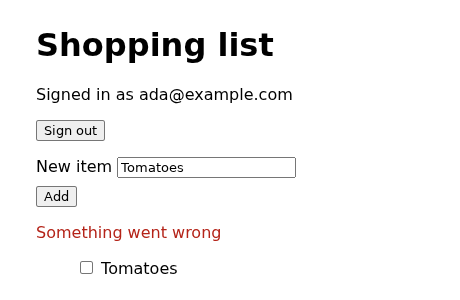
Screenshots land in .tomato/runs/<run>/screenshots/ beside the run’s logs,
so CI keeps them with everything else. tomato ui shows each one on the step
that took it. To keep one on purpose, use saves screenshot "checkout".
Options
  ada-browser:
    type: browser
    container: chrome
    options:
      base_url: "http://localhost:3000"
      viewport: 390x844         # a phone; default 1280x720
      locale: de-DE             # Intl, navigator.language and Accept-Language
      timeout: 10s              # how long clicks and fills wait; default 5s
      screenshots: artifacts/   # instead of the run's directory
locale is what a German visitor’s browser would send and report, so
translated pages, number and date formats, and Accept-Language negotiation
can all be tested.
What it doesn’t do
The browser resource is a person using the page, so it deliberately leaves out what a person can’t do:
- No CSS selectors or XPath. If a person can’t name it, a step can’t either.
- No running JavaScript in the page, and no intercepting its requests.
To control what a third party answers, stub the third party with
http-serverso the page and your app see the same answer. - Chromium only. No Firefox or WebKit, and no screenshot comparison.
- No hover, drag-and-drop or file uploads yet. If your flow needs one, open an issue.
The full list of steps is in the browser reference, and the short version of this post sits beside the HTTP, gRPC and shell clients.